
Touchscreen MacBook Pro: How macOS Works With Your Fingers, and How to Turn Touch Off
Published:
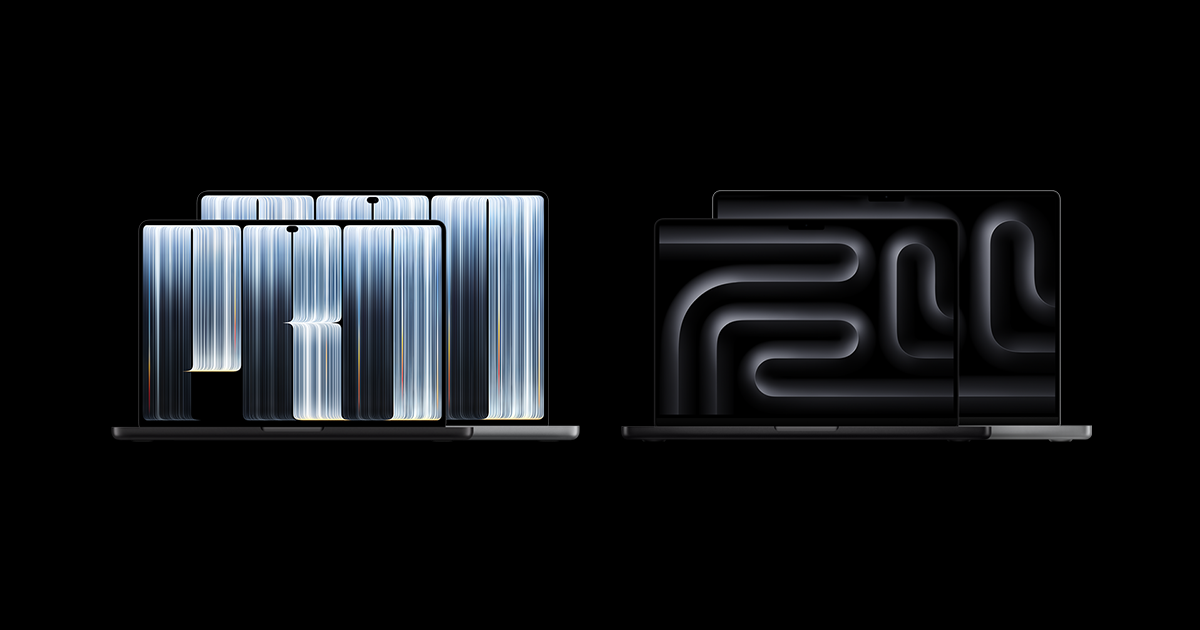
Image:
Apple
On Wednesday Apple announced a new MacBook Pro with what it calls a PROLED XDR Display, and it's the first Mac ever with a screen you can touch. That's a big change for a computer that has always been about the keyboard, trackpad and mouse, so if you're thinking about one you'll probably want to know two things: how macOS behaves when you poke it with a finger, and whether you can switch touch off if it just gets in the way. The good news on the second point is that, by all accounts, you can.
What Apple has announced
The new MacBook Pro comes in 14-inch and 16-inch sizes, with an OLED screen that supports touch, and it ships with macOS 27.2. That version of macOS includes a set of touch features that only apply to these new models, so nothing changes on existing Macs. Apple has also replaced the notch at the top of the screen (the little cut-out that holds the camera) with a Dynamic Island, which is the pill-shaped area you might know from the iPhone, and that's where Spotlight search, Live Activities and Siri now live.
Pre-orders have opened, and I'd check Apple's UK website for UK pricing and delivery dates before you decide anything.
How macOS changes when you use your finger
Back in 2016, Apple's then marketing chief Phil Schiller argued that a touchscreen Mac would mean "totally redesigning the menu bar for fingers", which he felt wouldn't sit well with a mouse or trackpad. According to MacRumors, which watched Apple's demonstrations to the press, Apple has gone for something much gentler than a redesign. Here's what happens:
- The menu bar stays the same, but when your finger moves over a menu item it grows larger so it's easier to hit the right thing.
- The window buttons get bigger. Those three coloured circles in the top corner of every window, which close, shrink and resize it, enlarge when you touch them, and then you tap the one you want.
- The Dock can hide away, and you swipe up from the bottom of the screen to bring it back.
- The Dynamic Island pulls down into a larger floating panel, a bit like a widget, where you can see Siri's answers and search with Spotlight.
- Familiar gestures work, so you can swipe to scroll a web page, pinch to zoom into a photo, drag slides from one presentation to another and double-tap a window to make it fill the screen.
Apple says macOS turns your touches into clicks automatically, which means lots of your existing apps should work with touch straight away without their makers needing to update them. Some of the groundwork has been sitting in macOS for a while too, such as the iPhone-style pull down to refresh in Safari, Mail and Calendar. It isn't only for casual use either, because professional apps such as DaVinci Resolve and Logic Pro have been updated so you can adjust video colour and tweak soundtracks with your fingers.
How to turn touch off
If you like the sound of the new MacBook Pro but don't want a touchscreen, MacStories editor Federico Viticci, a well-respected writer who has covered Apple closely for many years, says there's a setting in the Accessibility options that switches touch input off completely, as MacRumors reports. He also mentions a separate option to turn on pinch to zoom throughout macOS, so you can make things bigger with two fingers wherever you are.
On a Mac, Accessibility lives inside System Settings, so that's where to look once you have the machine. The screen still works as a normal display with touch off, and you carry on using the trackpad and keyboard just as you always have.
What Apple says comes next
According to 9to5Mac, an Apple employee answering questions from the press at Wednesday's event said the company is "only getting started" with making macOS work well for touch. Apple hasn't said what those future changes will be or when they'll arrive.
What early testers and commentators expect
This part is opinion and guesswork, not anything Apple has confirmed. 9to5Mac says early impressions from people who have had hands-on time look very positive. Bloomberg's Chris Welch describes Apple as taking "a measured approach" with touch, and long-time Apple writer John Gruber says his worries about touch spoiling the Mac have been put to rest. 9to5Mac's Ryan Christoffel expects a wave of touch improvements to come with macOS 28 next year, but that's his own prediction rather than something Apple has said, so treat it as an educated guess.
What I think
For some people, seeing a screen means wanting to touch it, so there will be plenty who find the new MacBook Pro feels completely natural. That said, if you're an older or less confident Mac user, I think you'd be better suited to one of the other models.
As for Apple saying it's only just getting started, I don't think that's a reason to hold off if you want one now. If anything, it's a promise that this model and the ones after it will be well looked after when it comes to touch, and it's worth remembering that Apple has been doing excellent touch work on the iPhone, iPad and Apple Watch for nearly 20 years.
And if you buy one and know full well you're not going to use the touchscreen, I'd turn it off. There's no point having it on if it's only going to cause the odd stray tap.
What it means for you
- If you love the idea of touch, there's no need to wait for the software to catch up, because what's there already covers the everyday basics and Apple has said more is coming.
- If you're less confident with technology, I'd look at the other Mac models first, as they'll keep things simpler.
- If you want the new screen but not the touch, buy it anyway and switch touch off in the Accessibility section of System Settings.
- Before ordering, check UK prices and delivery dates on Apple's UK MacBook Pro page.
If you're not sure whether the touchscreen MacBook Pro is right for you, or you'd like a hand finding that setting once it arrives, you can ask iHelp AI a quick question at /chat, or book a session and we'll talk it through with you, remotely anywhere in the UK or in person across Dorset.
Alex
Get posts like this by email
Apple news, buying advice and tips, whenever I post something new.
Now and then, never spam. Unsubscribe any time. Privacy
Comments