
Apple Has Dropped the Siri AI Waitlist. Here's How to Turn It On
Published:
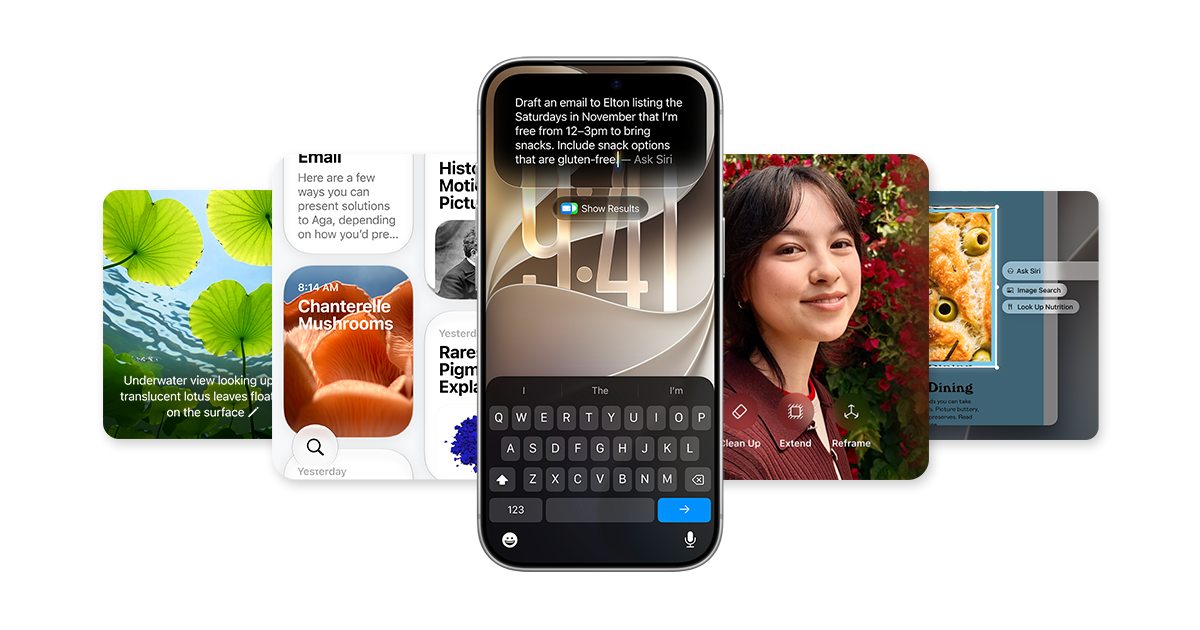
Image:
Apple
If you signed up for Siri AI when iOS 27 came out and you've been waiting ever since, or you never got round to trying it because of the queue, there's good news. Apple has quietly updated its support page to say the Siri AI waitlist is no longer used except at times of high demand, which means most people should now be able to turn it on and start using it almost straight away. So this is a good moment to check your iPhone and get it set up.
What Apple has changed
When Siri AI arrived with iOS 27 earlier this autumn, Apple let people in gradually using a waitlist. You'd tap the button to try it, join the queue, and then wait until your turn came before it downloaded. That made sense at launch, because Apple was managing how much strain its servers were under, and 9to5Mac spotted that the wording on Apple's help page has now changed.
Apple's How to get Siri AI page now says Siri AI will begin downloading automatically once you've turned it on, and that you might only be added to a waitlist first during times of high demand. In other words, the queue is now the exception rather than the rule.
What Siri AI actually is
Siri AI is Apple's completely new version of Siri, built on the next generation of Apple Intelligence (Apple's name for its artificial intelligence features). It's still labelled as a beta, which is Apple's way of saying it's finished enough to use but still being improved. According to Apple, it can:
- Answer questions about almost anything, and go out to the web for up-to-date information when it needs to.
- Understand your personal context, so you can ask it to find things across Messages, Mail, Calendar, Notes, Reminders and more.
- Understand what's on your screen, so you can ask about it or act on it.
- Get things done in your apps, like sending messages or creating calendar events.
- Help you write, by drafting something from a description, editing what you've written or giving feedback, almost anywhere you type.
- Keep your conversations in a Siri app, synced privately through iCloud, so you can start on your iPhone and carry on from your Mac, iPad, Apple Watch or Apple Vision Pro.
Apple also says some features that rely on its servers, including Siri AI, have daily usage limits which can vary depending on what you're asking and how busy things are, and that expanded access to these features will be available for a fee in the future. Apple hasn't said what that will cost or when it will start.
Will it work on your iPhone?
You'll need iOS 27 on one of these iPhones:
- iPhone 15 Pro or iPhone 15 Pro Max
- Any iPhone 16 model or later
- iPhone Air
- iPhone Duo
It also works on iPad mini (A17 Pro) and iPads with M1 or later on iPadOS 27, on Macs with M1 or later and the MacBook Neo on macOS 27 Golden Gate, and on Apple Watch Series 9 or later, Apple Watch Ultra 2 or later and Apple Watch SE 3 when paired with an iPhone that has Siri AI turned on.
There are a couple of other things to know. Your iPhone's language and Siri's language need to be set to the same supported language, and the supported languages at the moment are English, French, Japanese, Korean, Portuguese and Spanish. Your Apple Account also has to be in an eligible region, and Apple says Siri AI isn't available on iPhone, iPad or Apple Watch if your Apple Account region is in the EU, which is worth bearing in mind if you've set your account up in another country. It isn't available to anyone under 13 either.
How to turn it on
If your iPhone is on iOS 27 and is one of the models above, here's what to do:
- Open Settings and tap Siri.
- If Siri is switched off, tap Turn On Siri first.
- Tap Try Siri AI (Beta).
- Follow the steps on screen to choose a voice, set up voice recognition and look over your privacy settings.
- Siri AI will then download on its own. If it's a busy time you might be put on a short waitlist first, but that should now be the exception.
If you joined the waitlist a while ago and nothing seems to have happened, it's worth going back into Settings and then Siri to see whether it now says you're using Siri AI.
What I think
I'd encourage you to turn it on, because Siri AI is a lot better than the old Siri. I think every Apple user will find it helpful, whatever your confidence with technology, because it doesn't just carry out actions like the old Siri did. It can also go online and find out live information for you, so you can simply ask it a question and get a proper answer.
And if you've checked everything above and you still can't see the option to turn it on, my advice is to call AppleCare, because they can look at your account and device and tell you what's stopping it. You can find the ways to get in touch on Apple's support contact page.
Need a hand?
If you're not sure whether your iPhone can run Siri AI, or you'd like someone to walk you through switching it on and showing you what it can do, I'm happy to help. For a quick question you can ask iHelp AI any time, or you can book a session with us, either remotely from anywhere in the UK or in person if you're in Dorset.
Alex
Get posts like this by email
Apple news, buying advice and tips, whenever I post something new.
Now and then, never spam. Unsubscribe any time. Privacy
Comments